Setup a new GitLab repo
In this lab, we will create a new repo called Class2 on GitLab.
Access GitLab
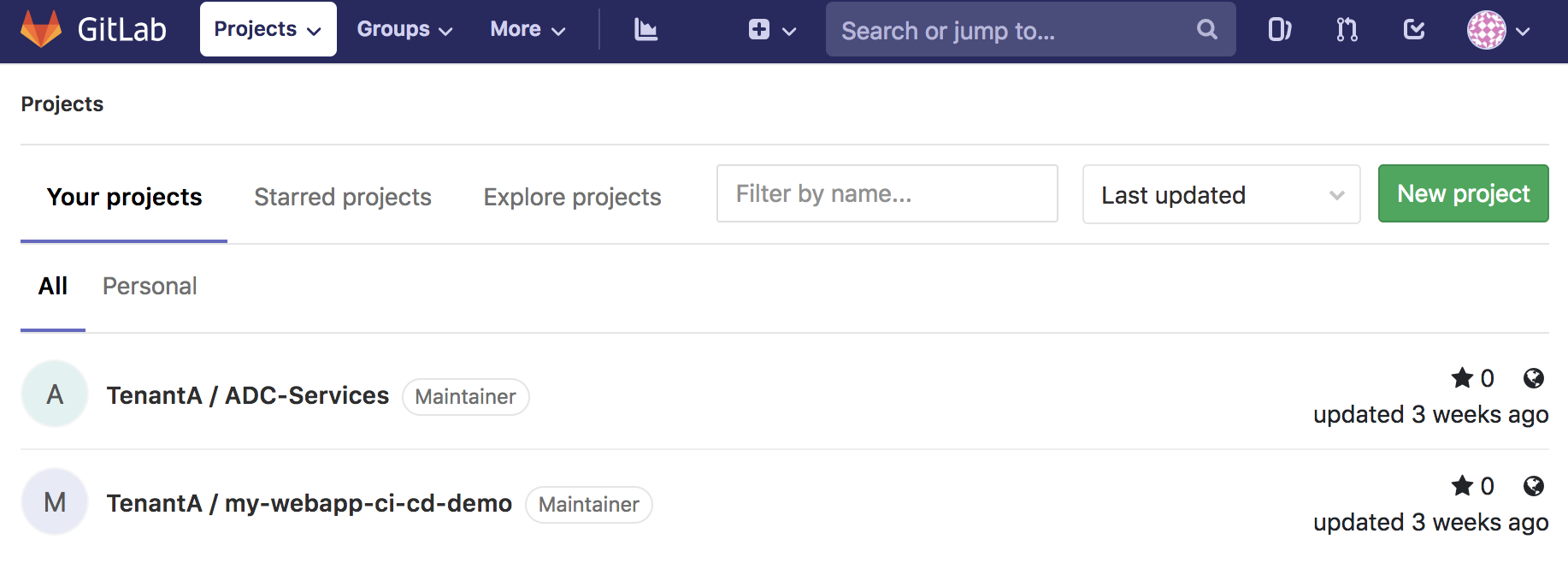
Connect to GitLab. It should be http://<your VM IP>:1080/
- Login: TenantA
- Password: Pa55w0rd
Note
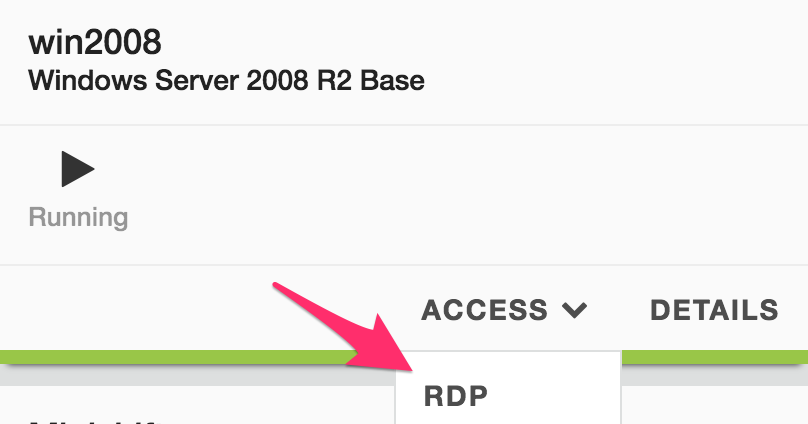
If you use UDF (F5 private cloud), you must use the RDP Jumphost to access GitLab.
You have a shortcut on Chrome to access it.
Create the new repo
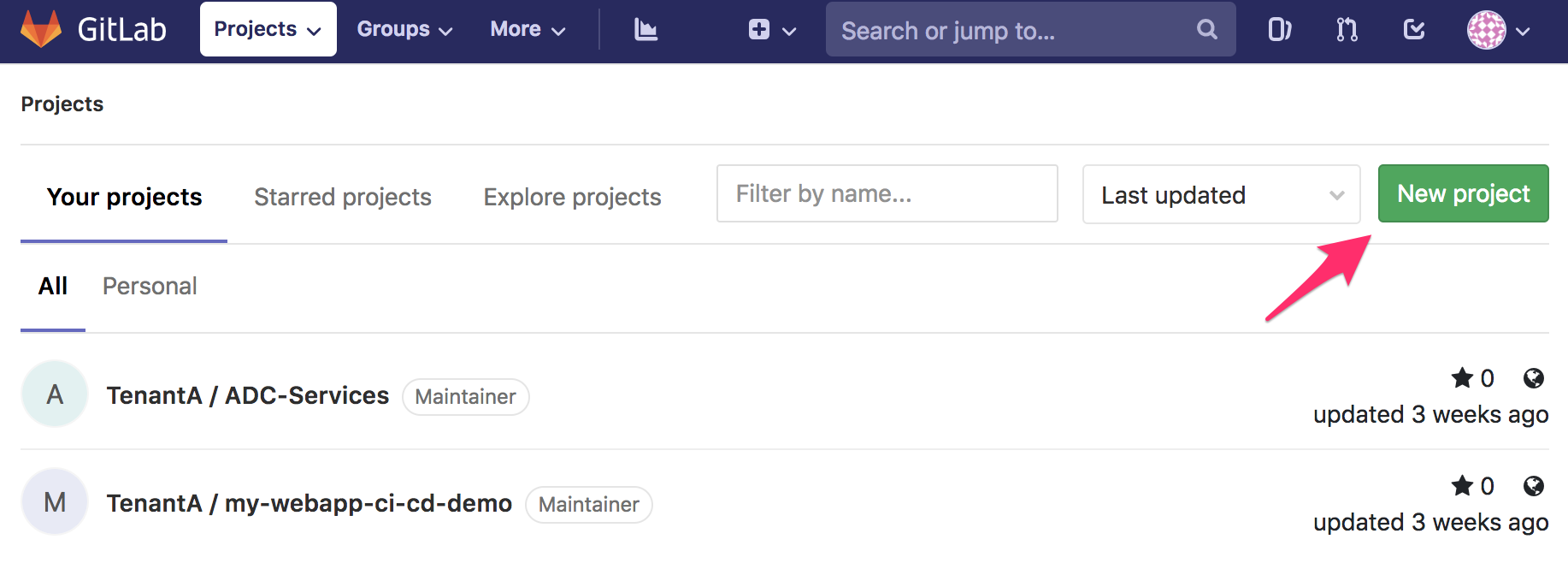
Click on the New project button.
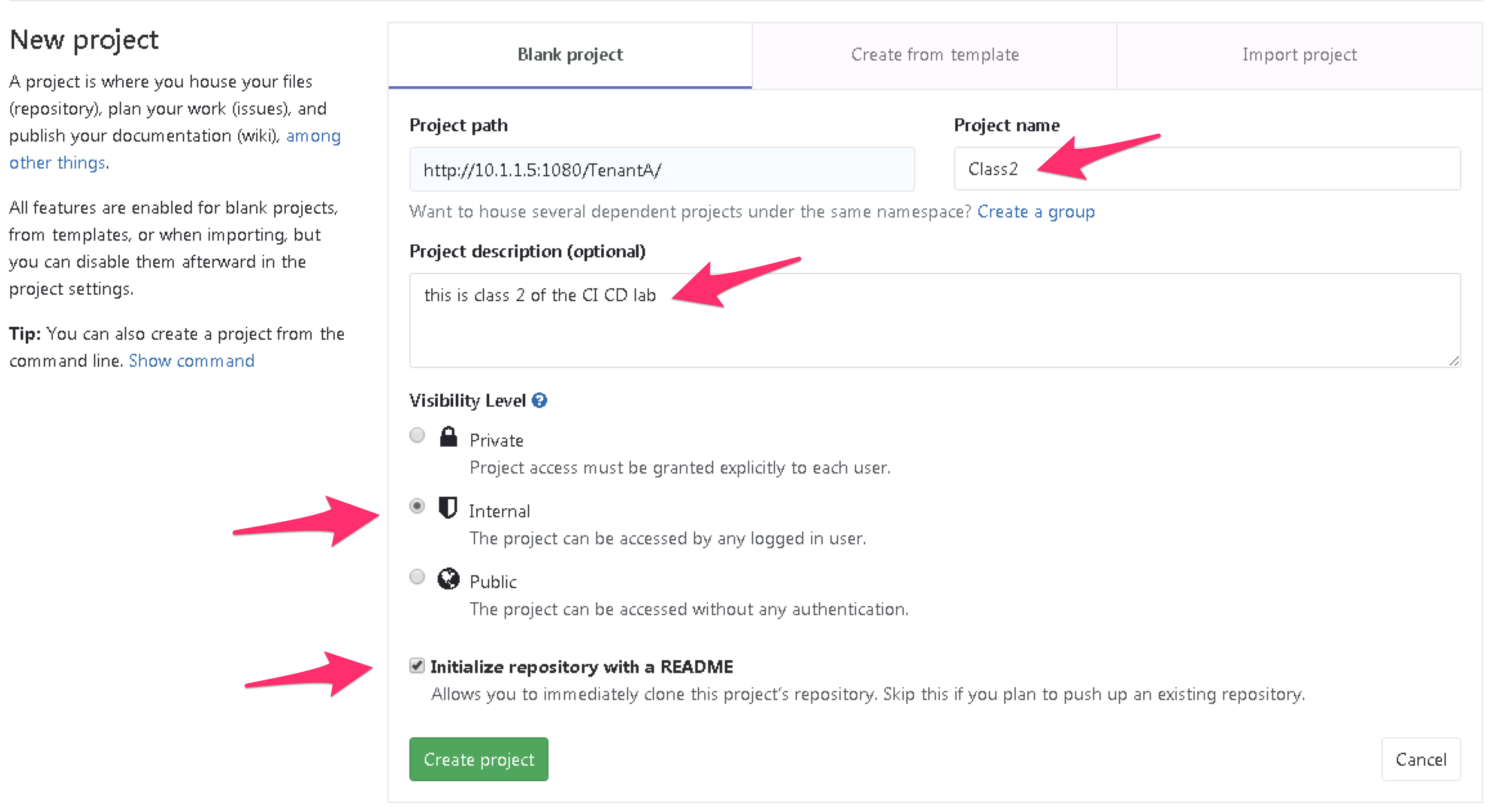
You’ll get a new page asking about the project information:
- Project name: Class2
- Project description: this is class 2 of the CI CD lab
- Visibility level: Internal
- Check the box for the Initialize repository with a README option
Note
If you use UDF, don’t use the GitLab HTTP access to do this. You need to use the jumphost to do this. Otherwise the project path will not be good.
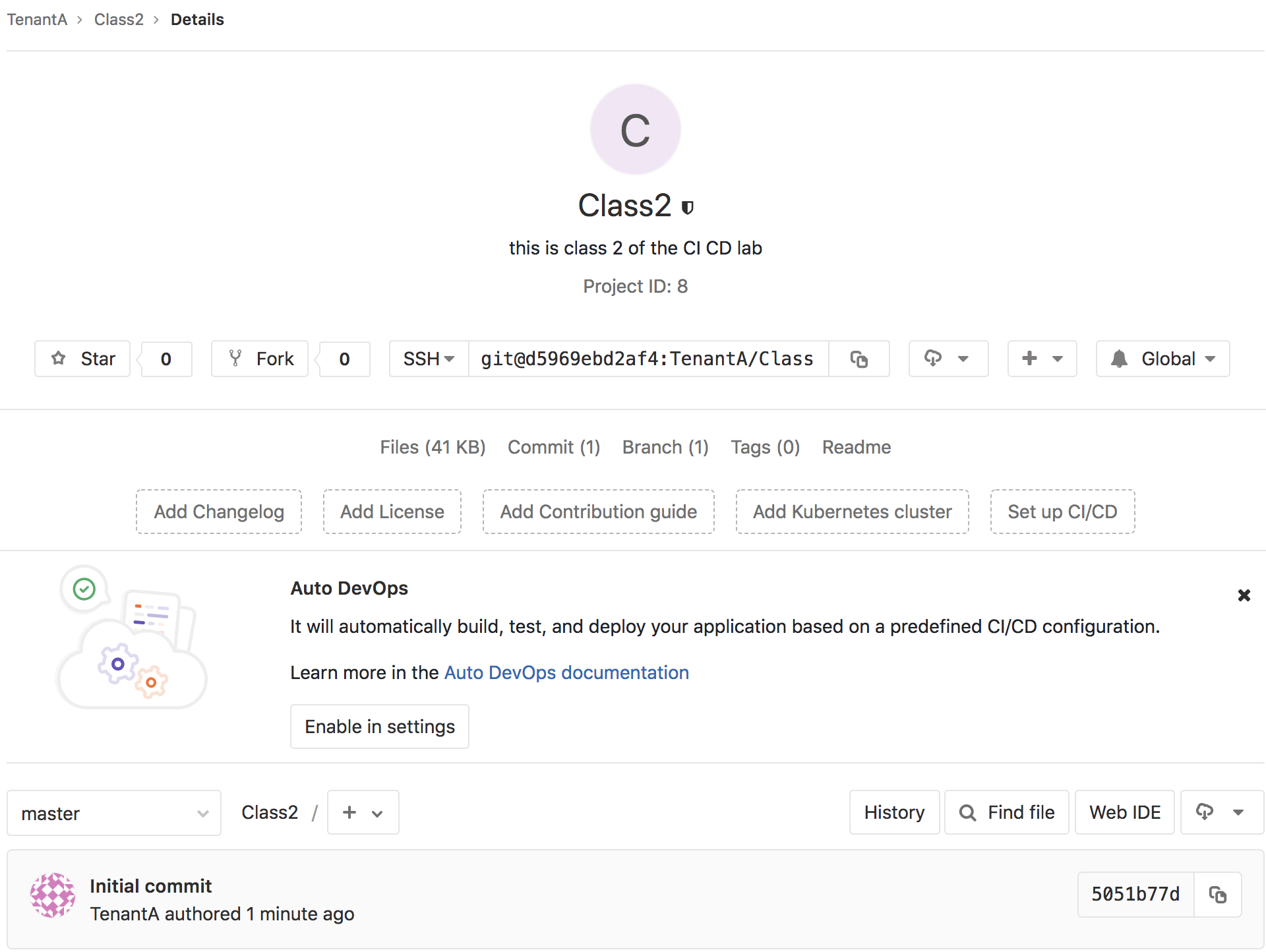
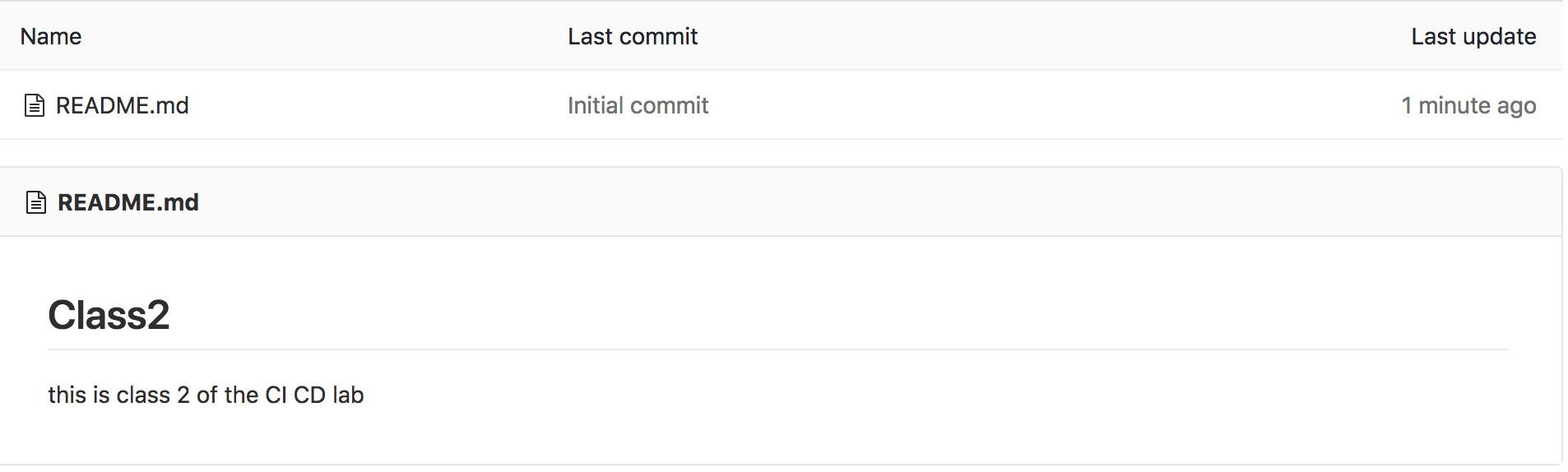
In the next lab, we will update our GitLab repo.